
How to Use FolderCascade

Follow this step-by-step guide to organize your folders with color labels in seconds.
Open FolderCascade
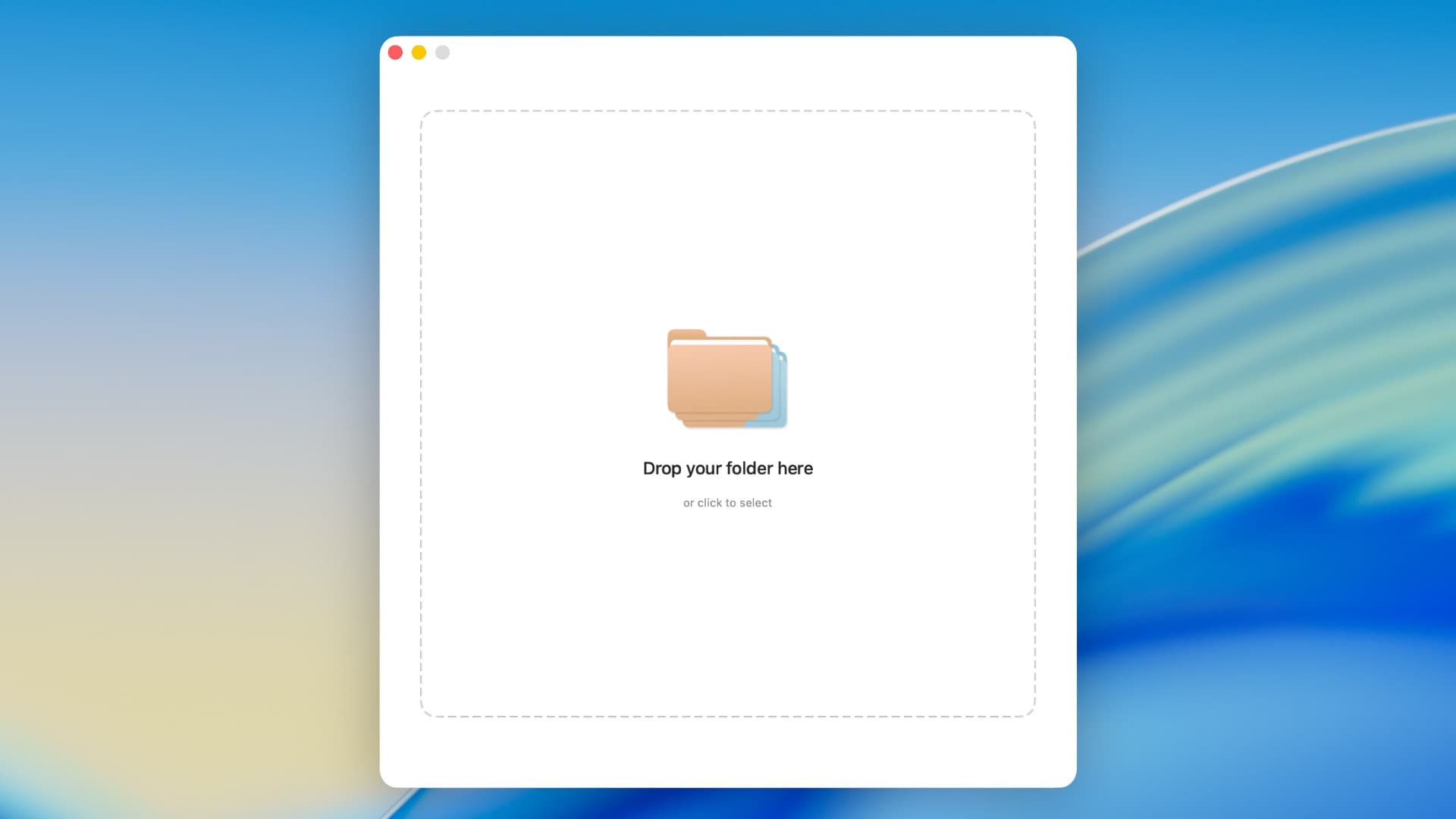
Launch FolderCascade from your Applications folder, Launchpad, or Spotlight. The app will open with a clean interface ready for you to select a folder.
Select a Folder
Click the "Select Folder" button or drag and drop a folder into the app. Choose the parent folder whose subfolders you want to label. FolderCascade will scan all nested folders inside.
Pick a Color Label
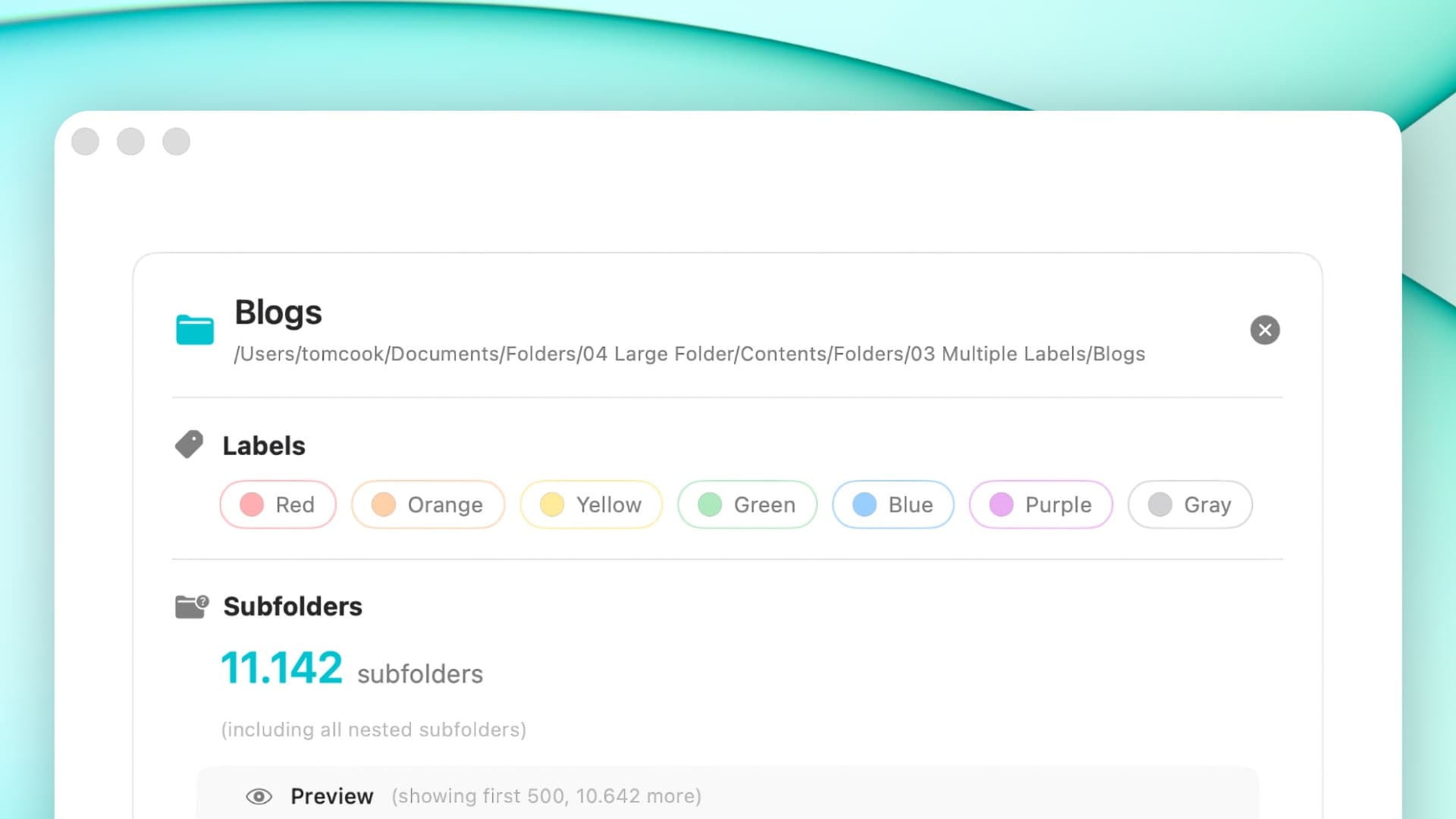
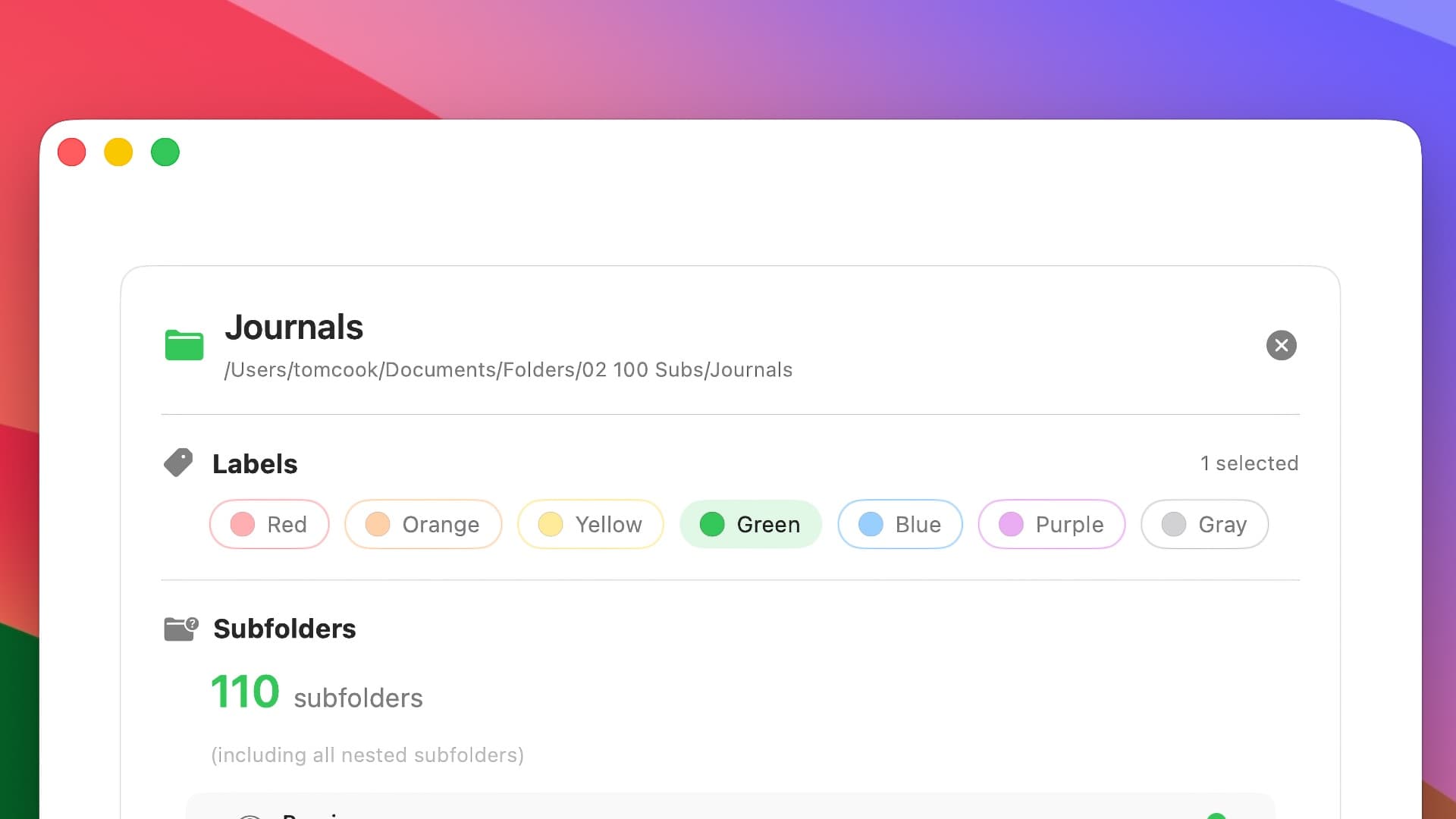
Choose from any of the 7 Finder color labels: Red, Orange, Yellow, Green, Blue, Purple, or Gray. Click on the color you want to apply to your folder hierarchy.
Preview Changes
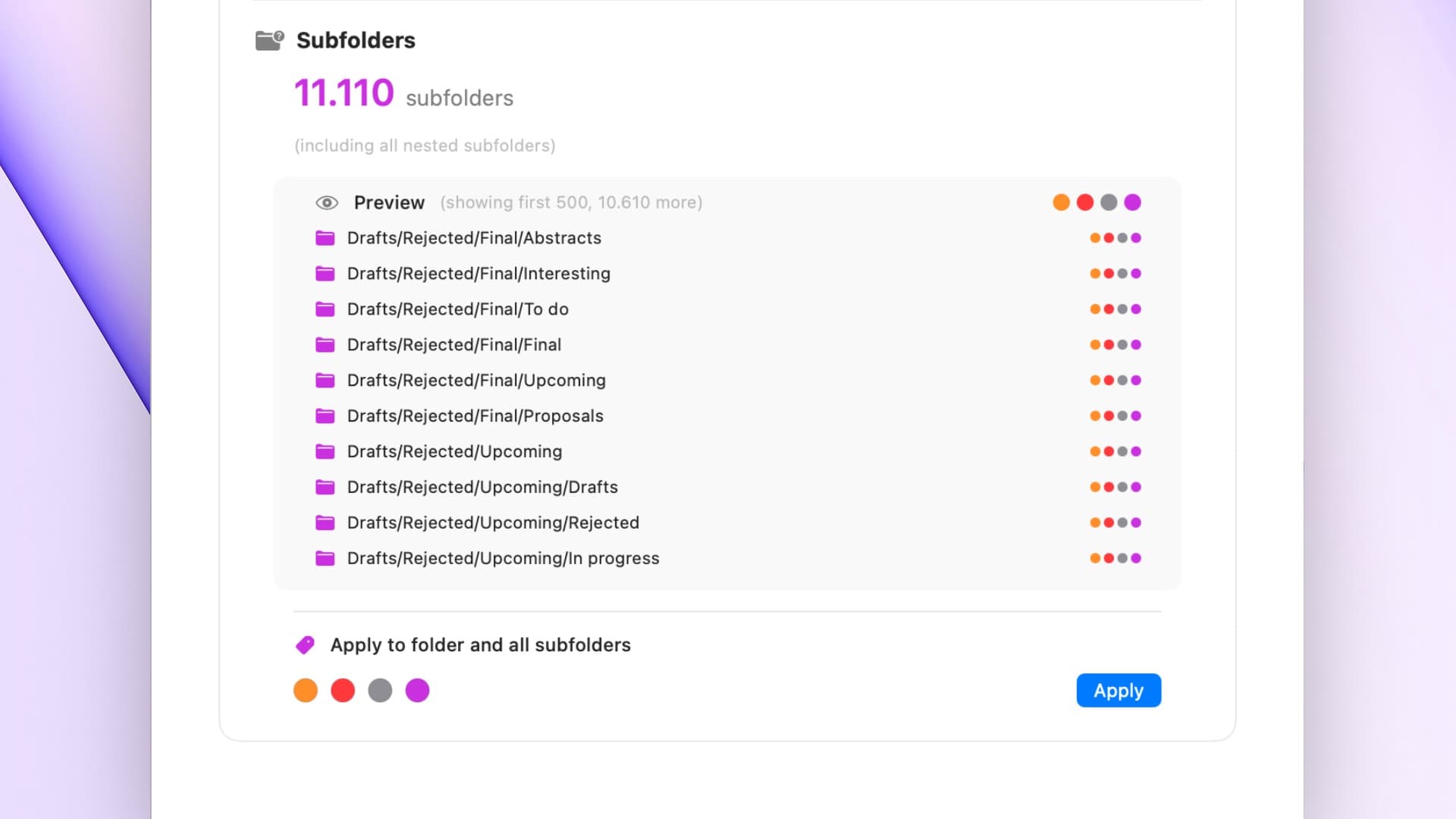
Before applying, FolderCascade shows you a preview of all the folders that will be affected. Review the list to make sure everything looks right. You can see exactly how many subfolders will receive the new label.
Apply Labels
Once you're satisfied with the preview, click the "Apply" button. FolderCascade will cascade the color label to all subfolders instantly. The process is fast and works entirely offline on your Mac.
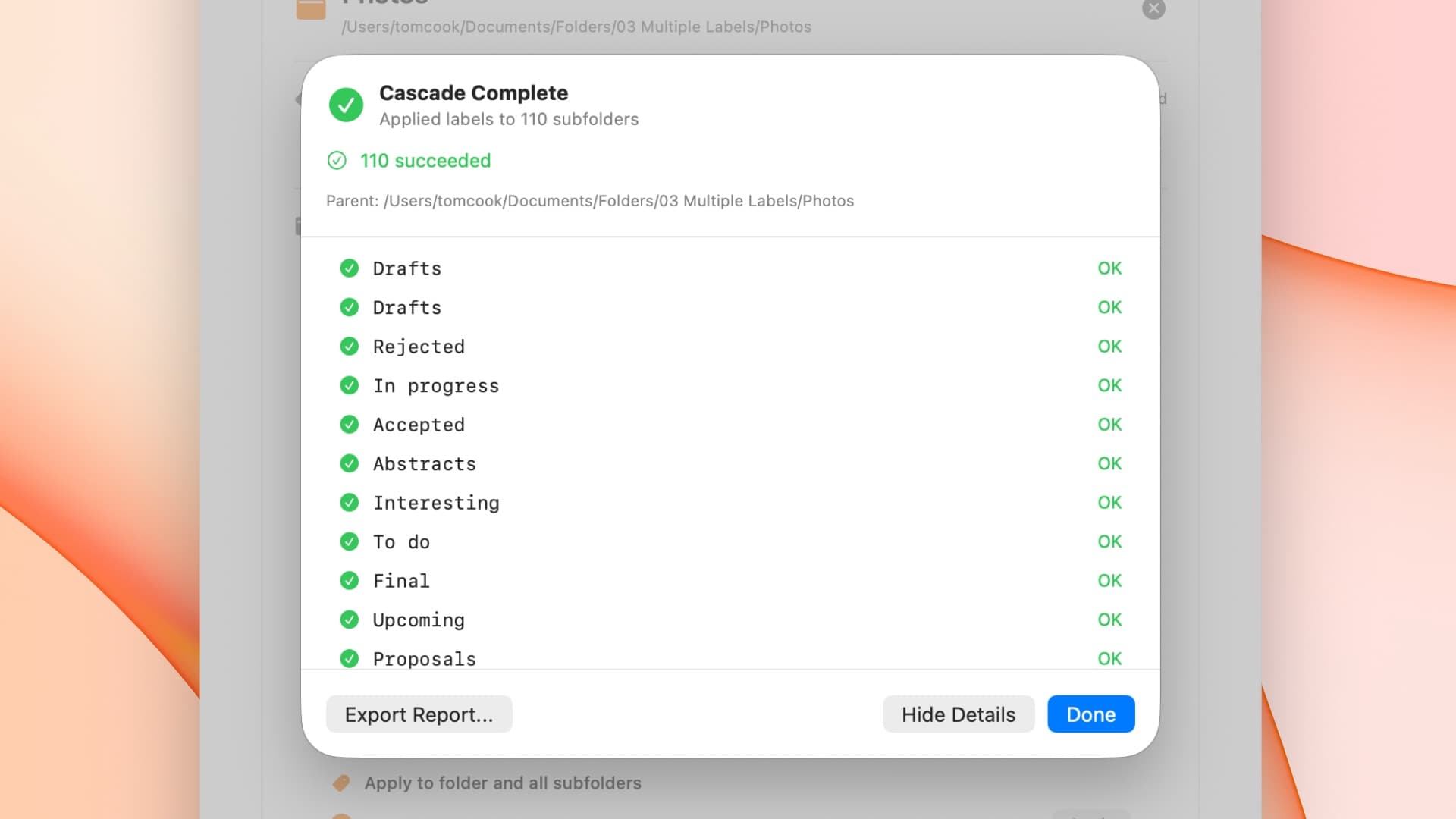
View Results in Finder
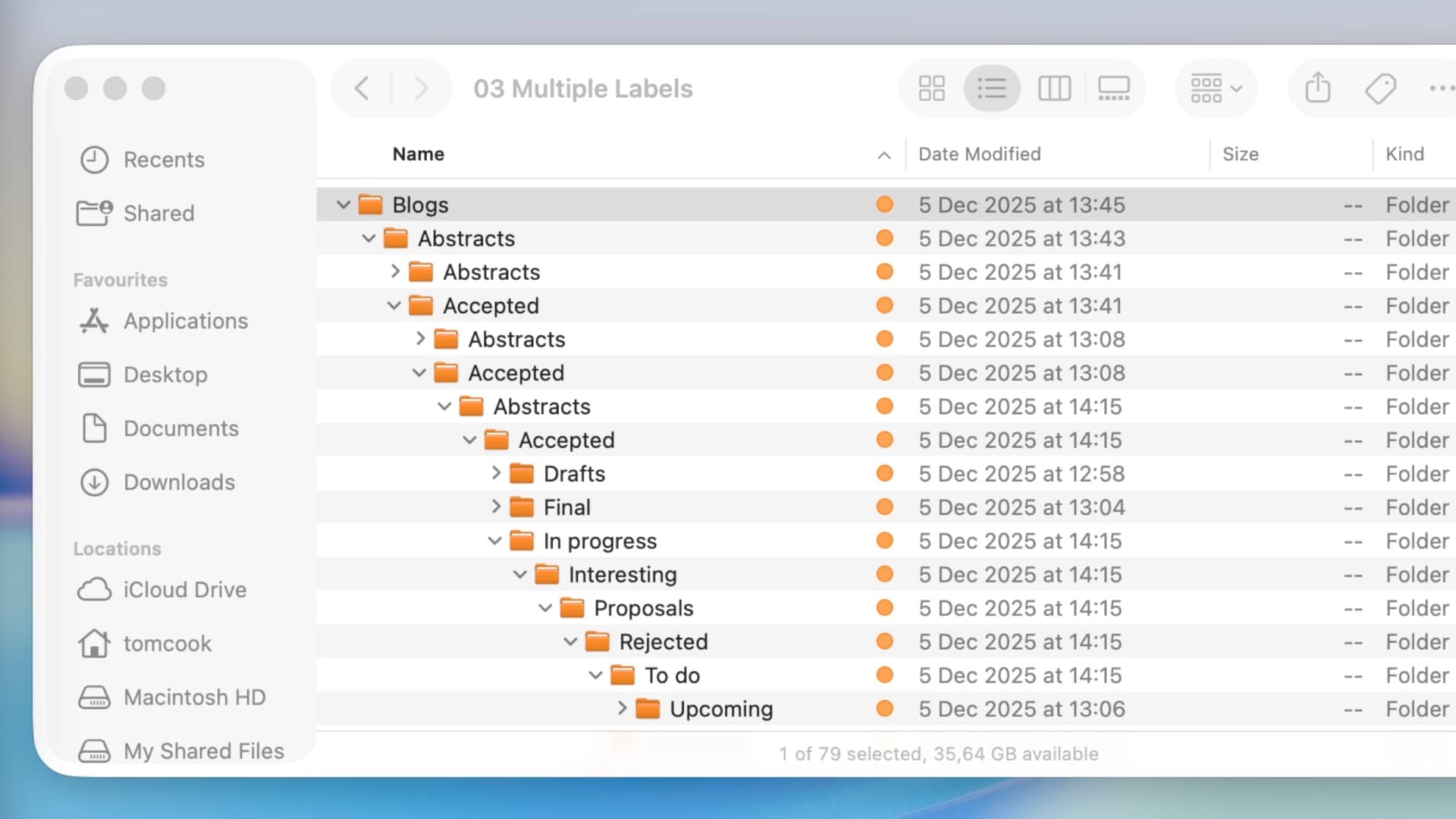
Open Finder to see your newly organized folders. All subfolders now display the color label you selected, making it easy to visually identify and organize your files.
Need more help?
Visit our Support Page